

Abofolio
Subscriptions & Deadlines
Abofolio shows you what you pay every month for subscriptions, licenses and contracts – and reminds you in time before a contract renews automatically. No account, no ads – your data stays on your Mac.
Abofolio is currently available in German.
What is Abofolio?
Abofolio brings all your subscriptions, contracts and licenses together in one place: what they cost, when the next payment is due and the last day you can cancel. You no longer need to dig through bank statements or keep an Excel list, and nothing renews behind your back. Private, no account, right on your Mac.
Every subscription. One view.
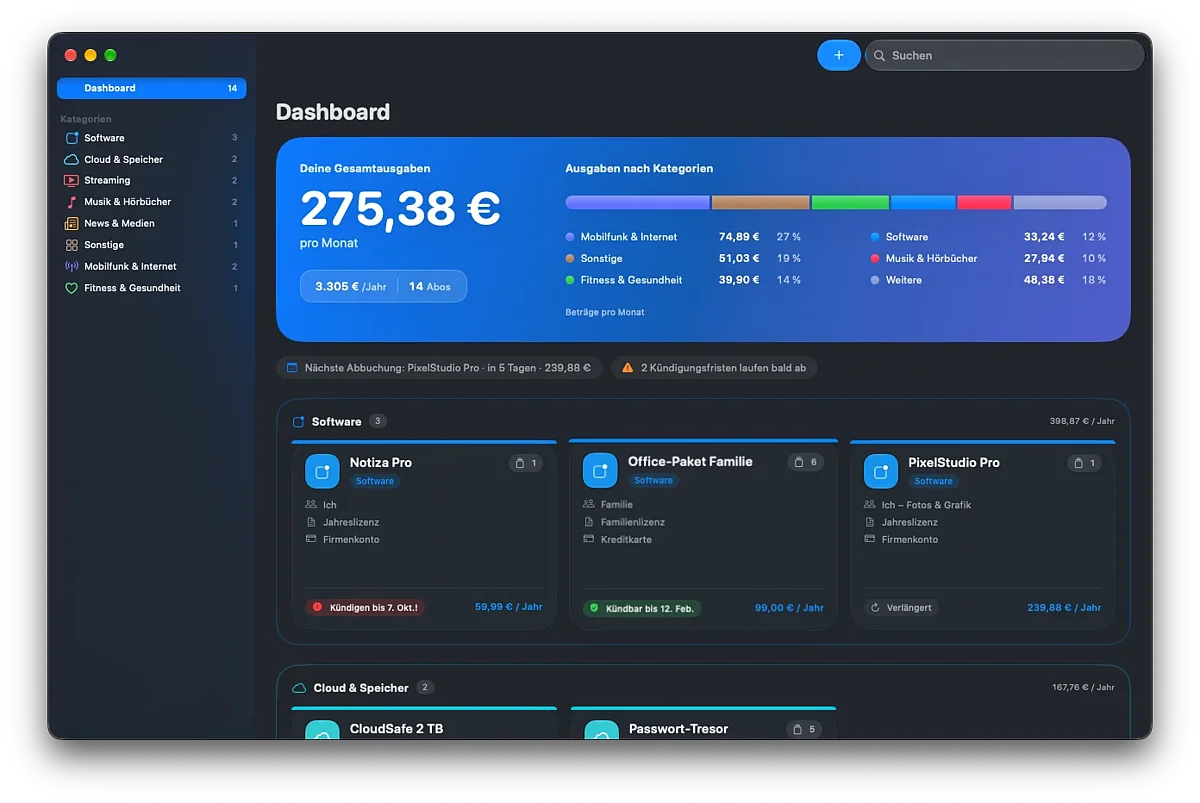
All costs at a glance
The dashboard shows your monthly and yearly spending, split by category and shown as a chart.
Never miss a cancellation deadline
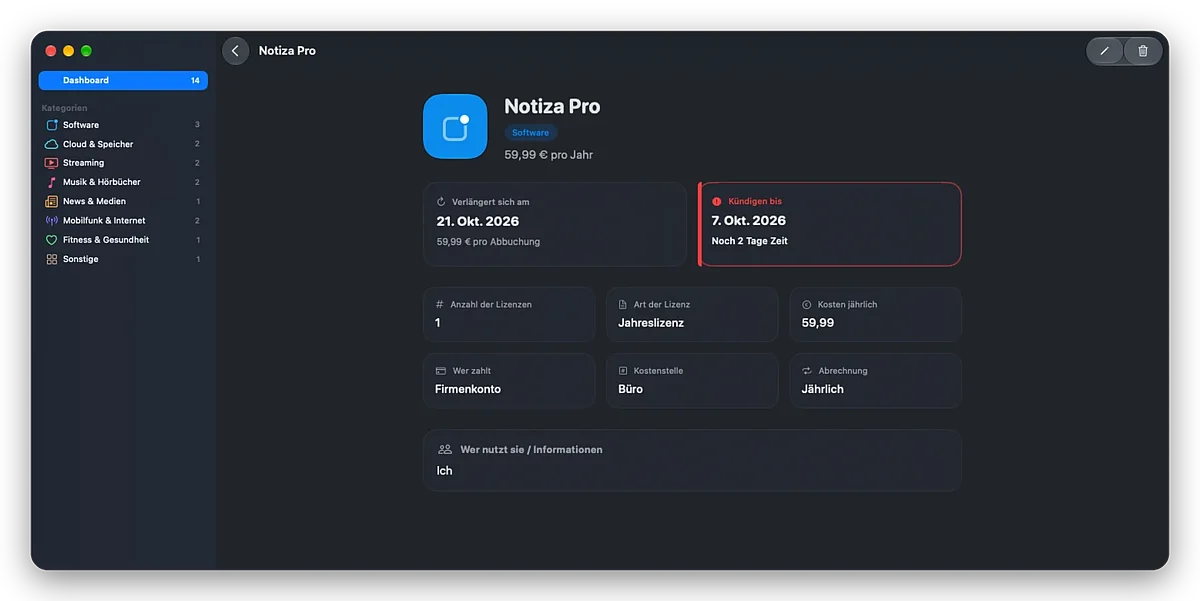
Abofolio works out the last day you can cancel from the term and notice period. A traffic light shows what's getting close.
Reminded in time
You get a notification before the next payment and before the notice period ends, even when the app is closed.
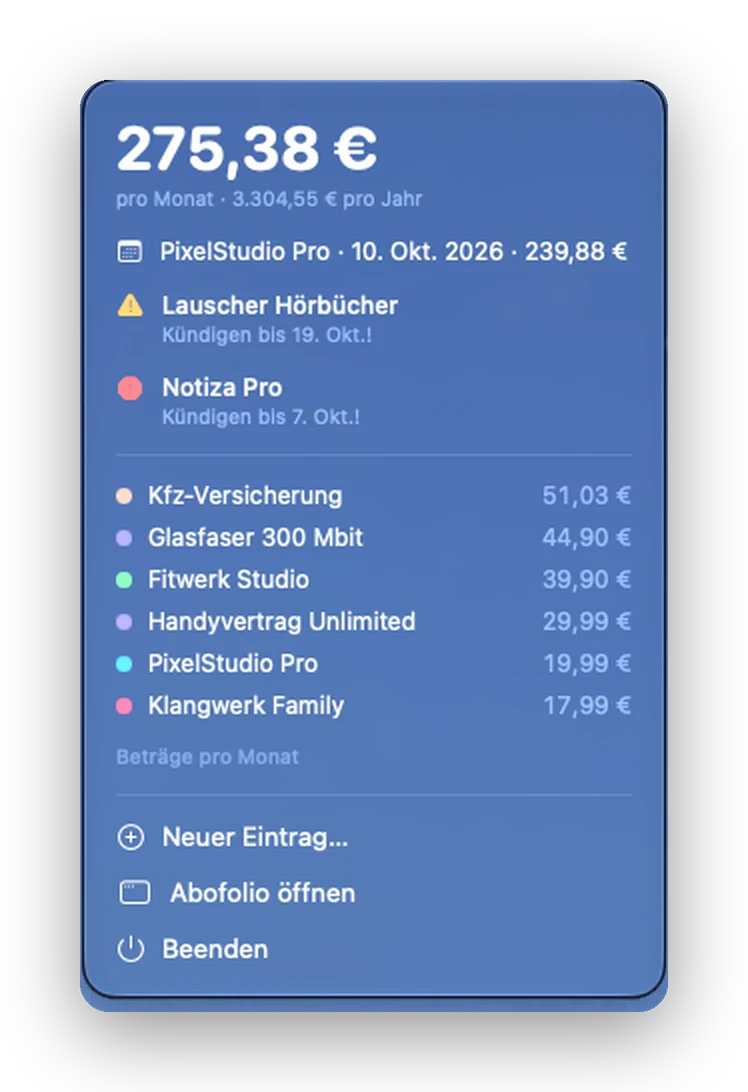
Right in the menu bar
One click shows your monthly costs and upcoming deadlines. You can also add a new entry from there.
Licenses & teams
For software and company licenses, record the quantity, license type, users, cost center and who pays.
Your storage location
Keep your data locally on your Mac or in a file in iCloud Drive or Dropbox. Use a shared folder to work on it together.
Never auto-renewed by surprise again
Abofolio does the math for you. You can see at a glance which subscription renews soon and how long you still have to cancel.
- Next payment with date and amount, for every subscription
- Notice period calculated automatically from term and notice period
- Traffic light green, yellow under 14 days, red under 3 days, grey once the deadline has passed
- Cancellation status mark what you've already cancelled
- Notes customer number, how to cancel, contact person
No account
no server, no ads, no tracking
Only on your Mac
or in your own cloud folder
Time Machine
backed up automatically
Native Mac app
light/dark, shortcuts, menu bar
Start free, go Pro once
Pro is a one-time purchase with your Apple Account and can be restored on new devices at any time.
| Free | Pro (one-time €9.99) | |
| Entries | up to 5 | unlimited |
| All features | ✓ | ✓ |
| Subscription | - | no subscription |
Frequently asked questions
Only on your Mac. There is no server and no account. If you like, you can choose your own file under Einstellungen › Daten (Settings › Data), e.g. in iCloud Drive or Dropbox.
Time Machine backs up Abofolio automatically. You can also save your data to iCloud Drive or Dropbox under Einstellungen › Daten › „Neue Datei anlegen…“ (Settings › Data › Create New File).
Save the file to iCloud Drive or Dropbox and open it on the other Mac under Einstellungen › Daten › „Datei öffnen…“ (Settings › Data › Open File). Alternatively, macOS Migration Assistant transfers everything automatically.
Yes. Put the file in a shared folder and open it on each Mac under Einstellungen › Daten › „Datei öffnen…“ (Settings › Data › Open File). Please don't edit on two Macs at the same time.
Under Einstellungen › Allgemein (Settings › General), turn on „Vor Ablauf der Kündigungsfrist erinnern“ (Remind me before the cancellation deadline) and allow notifications. In the entry, add the renewal date and notice period under „Vertrag & Kündigung“ (Contract & Cancellation). You'll get the notification even when Abofolio is closed.
Green: plenty of time to cancel. Yellow: deadline within the next 14 days. Red: less than 3 days. Grey: deadline missed – Abofolio shows the next cancellation date.
Free for up to 5 entries. "Pro" unlocks unlimited entries – a one-time purchase of €9.99, no subscription.
Abofolio › Einstellungen › Abofolio Pro › „Käufe wiederherstellen“ (Settings › Abofolio Pro › Restore Purchases) – using the same Apple ID you bought it with.
Questions, bugs or ideas: office@stefan-andres.at
Please include the app version (Abofolio › Einstellungen › Über Abofolio / Settings › About Abofolio).